Settings
Users
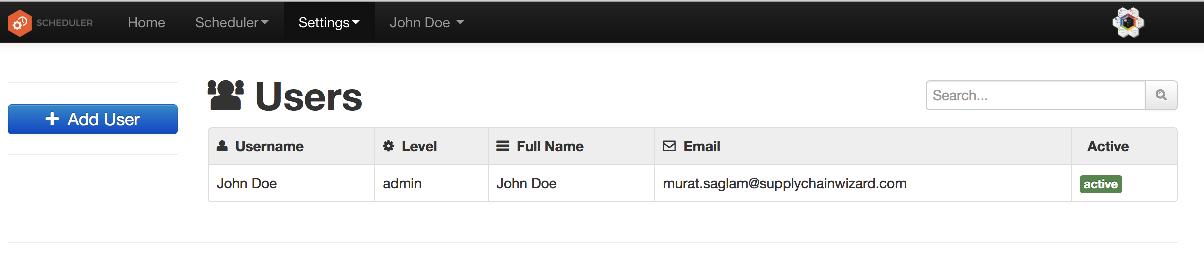
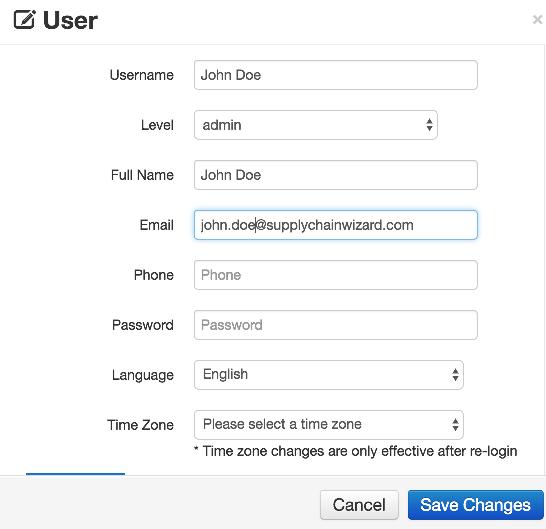
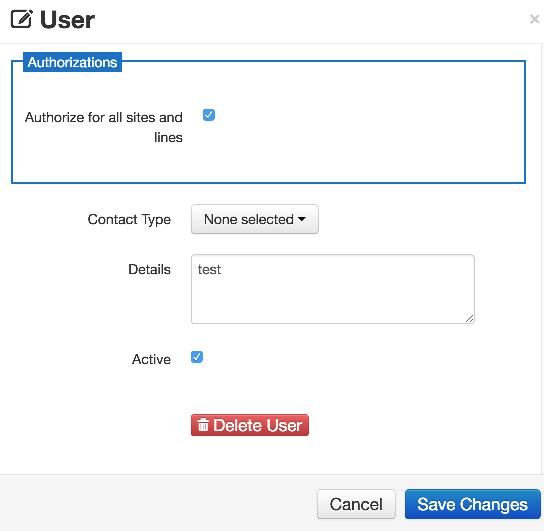
Scheduler supports multiple users per client and the users are managed at this users page under the settings tab. In this page, the table shows user details that are registered to the system. Adding a user can be done be using “Add User” button whereas editing can be done by clicking on the respective user on the table. For both adding or editing, there is a single form with fields related to user details. These fields are username, level, full name, email, phone, password,language, time zone, authorizations, contact type, details,active. Editing or adding can be finalized using “Save Changes” button.
Customers
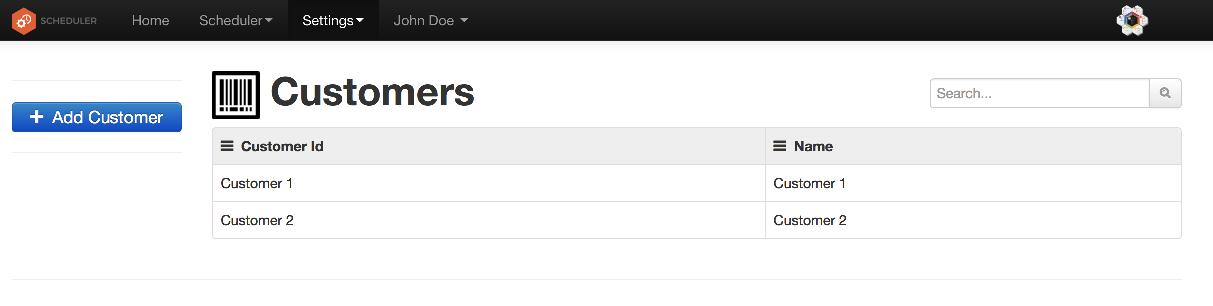
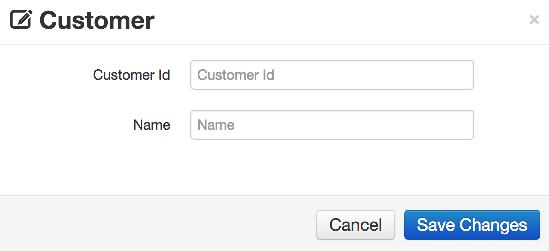
The customers are registered at this customers page under the settings tab. In this page, the table shows customer details that are registered to the system. Adding a customer can be done be using “Add Customer” button whereas editing can be done by clicking on the respective customer on the table. For both adding or editing, there is a single form with fields related to customer details. These fields consist of customer id and name. Editing or adding can be finalized using “Save Changes” button.
Sites
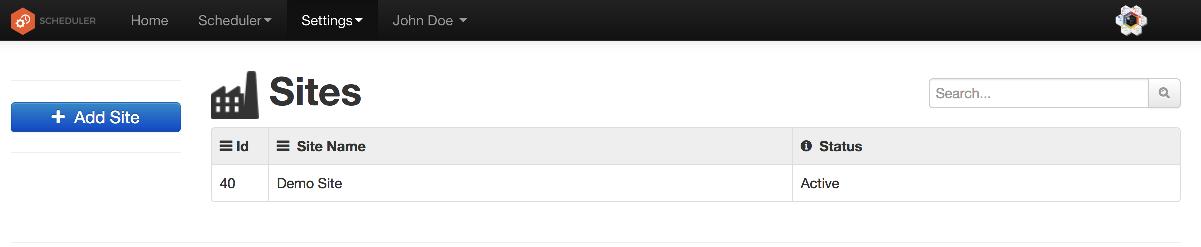
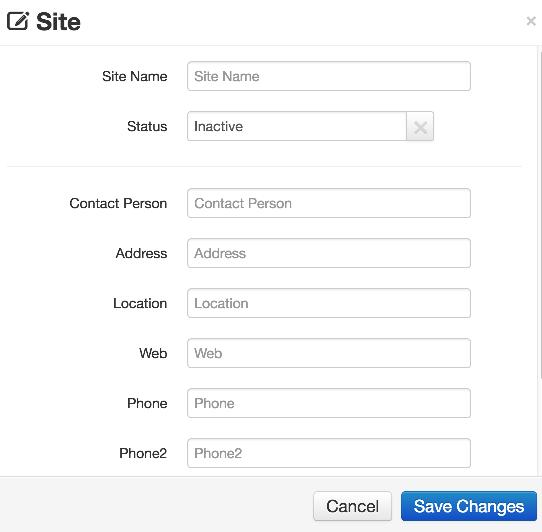
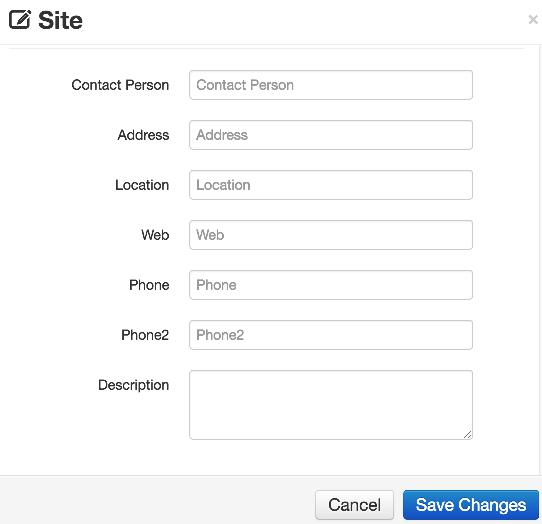
New sites can be added or the existent sites can be checked and edited using this page under settings. Adding a site can be done be using “Add Site” button whereas editing can be done by clicking on the respective site on the table. For both adding or editing, there is a single form with fields related to customer details. These fields consist of site name, status, contact person, address, location, web, phone, phone2 and description. Editing or adding can be finalized using “Save Changes” button.
Lines
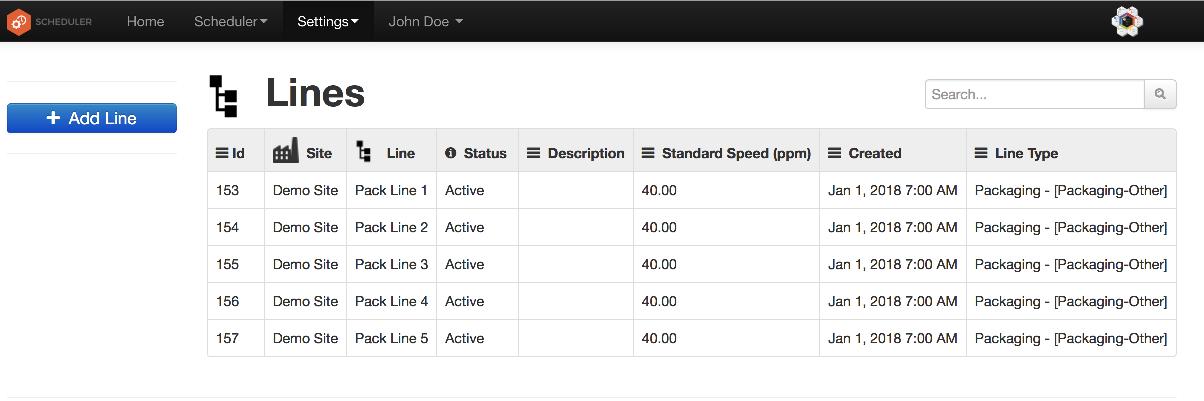
Lines are integral part of the scheduler. They define the capacity. In this page users can manage the lines in the system. In order to add a line user has to press the ‘Add Line’ button that brings a pop- up window as below. Some of the features below are related to the ‘SCW Digital Factory’, some are important for the Scheduler.
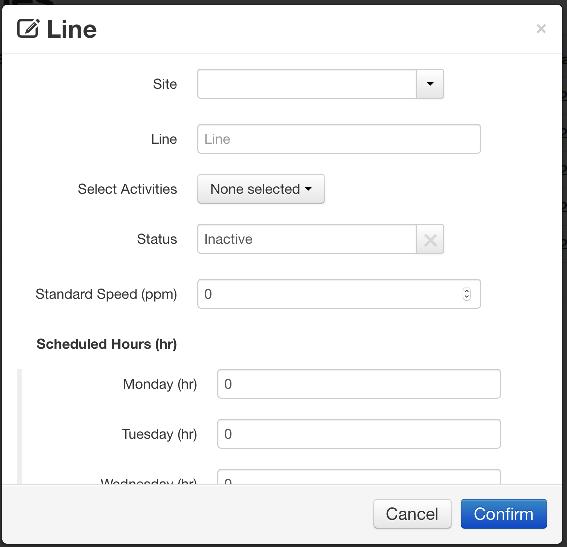
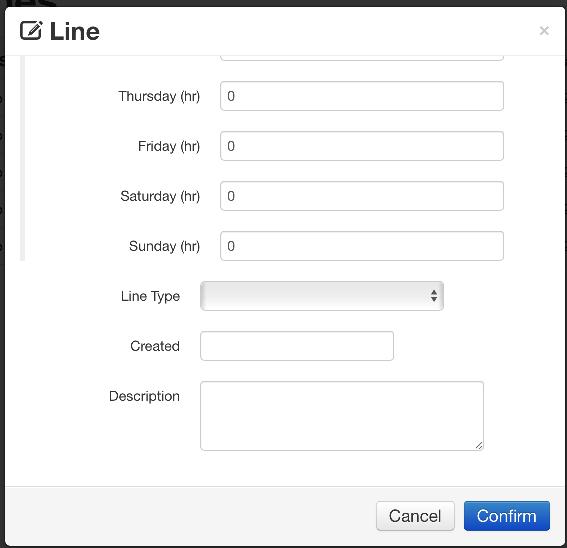
Each line should be under a ‘Site’ and must have a name. The ‘Status’ must be active, if the line is going to be used in the Scheduler. A standard speed of the line can be provided here but in order to define a compatibility between a line and a product a ‘product-line speed’ must be provided in the Product Speed of the Settings. Scheduled Hours are irrelevant for the Scheduler (important for OEE Tracker). The ‘Line Type’ must be provided here, so that the system can know which production stage is the current line belongs to. ‘Line Type’ is a drop down menu that can be managed in the Line Types oc.
Products
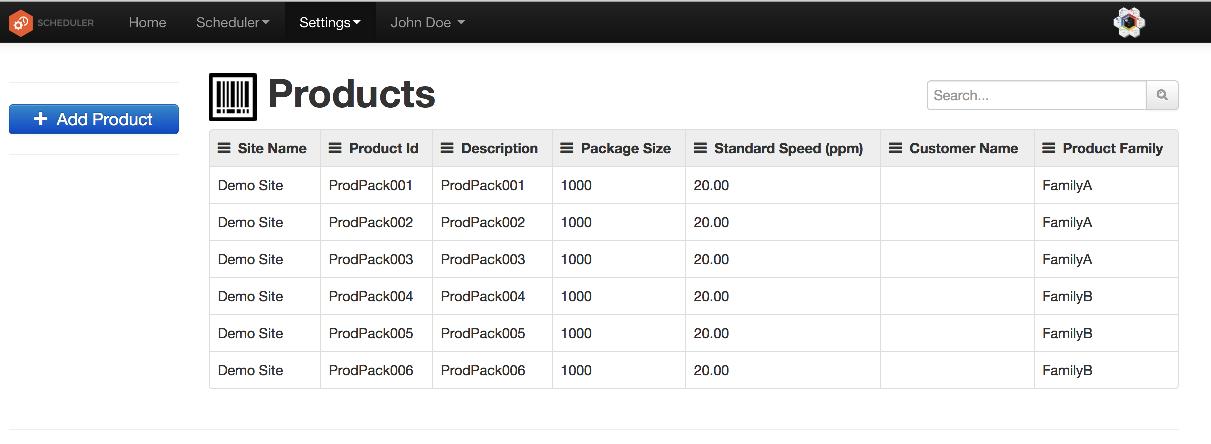
Products are also essential and must be provided here in order to ensure that the Scheduler works properly. When a Work Order is created it has to have an associated product through a dropdown menu and that menu is managed based on the products defined in this page.
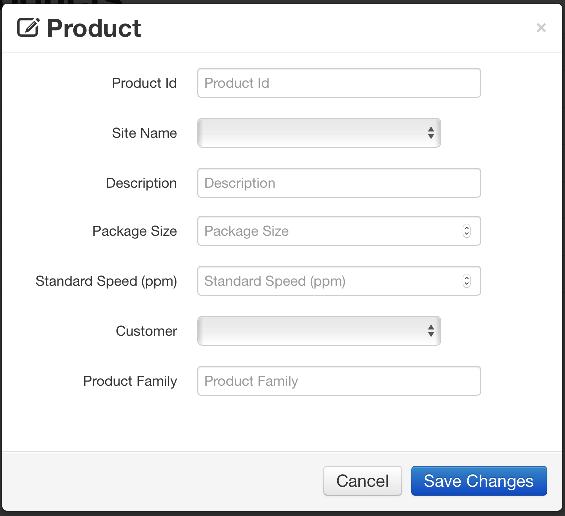
Similar to the lines, products are associated to a site and must have a unique id. The user can also add a customer field here for reporting purposes.
Activity Types
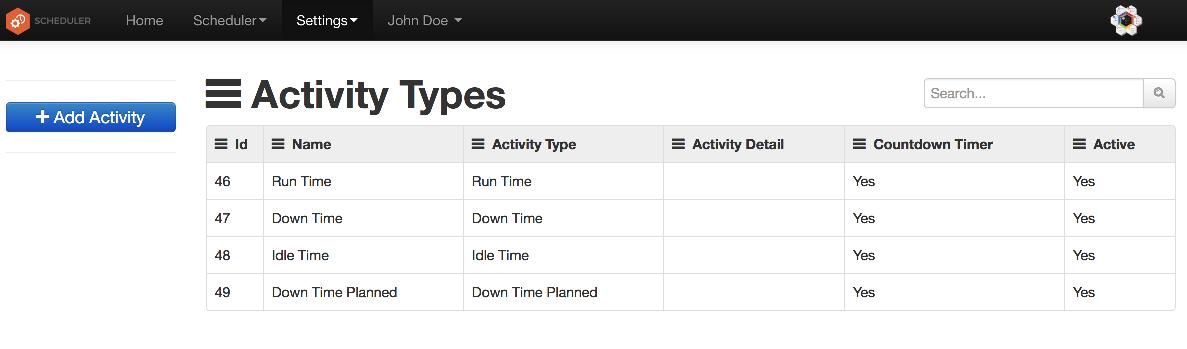
Activity types must be defined in the system for the scheduler to work. A Run Time activity is necessary so that the Scheduler assigns them for the Work Orders. On top of that, several down time activities can be defined here and they will be available for the Sub-section 5: Down Time Activities Area
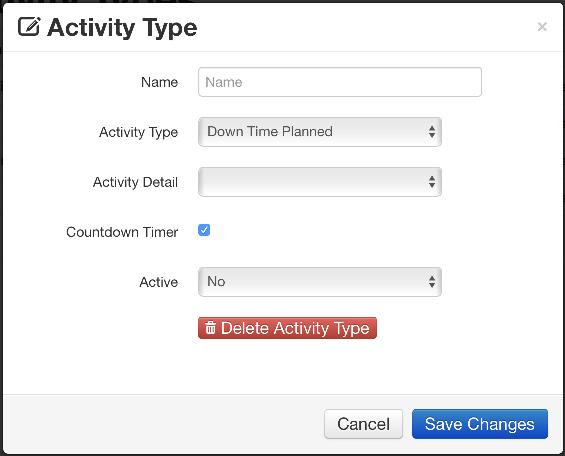
User need to select a sub activity type for an activity type. For example a down time activity can be a simple down time activity or a planned down time activity. For scheduler, only ‘Down Time Planned’ type of activities will be used by the system. Also, only active activities are considered by the system.
Product Speed
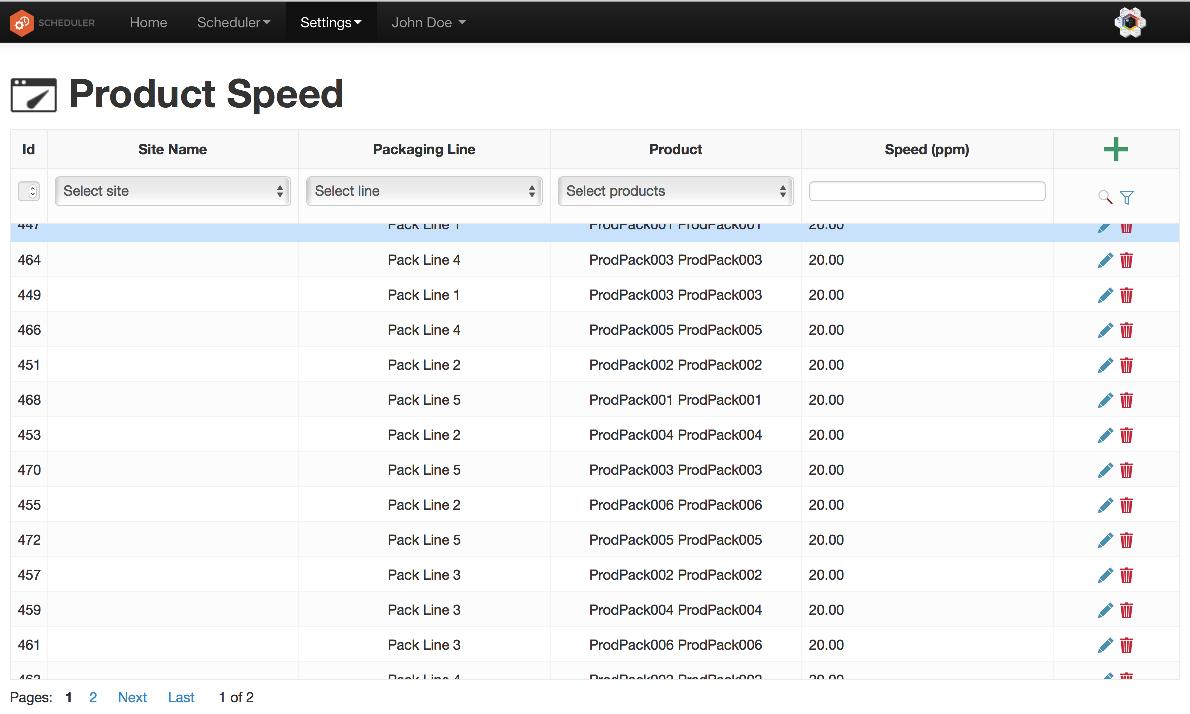
Product Speeds table is important as it defines the compatibility of a product to the line. User can provide here a product line pair using the ‘+’ sign on the right, with a speed. The optimization engine of the system considers only the existing product-line pairs to be compatible. Although the system allows manual operation for the user to drag and drop to an ‘incompatible’ line, in the future releases such an action will be considered as a violation and the user will be warned in the Violations & Warnings KPI Panel. Note that you can associate a single product to more than one lines by simply adding rows, and can give different speeds. The system considers this bit while doing automatic scheduling, e.g. favors the faster line while scheduling a product.
Line Types
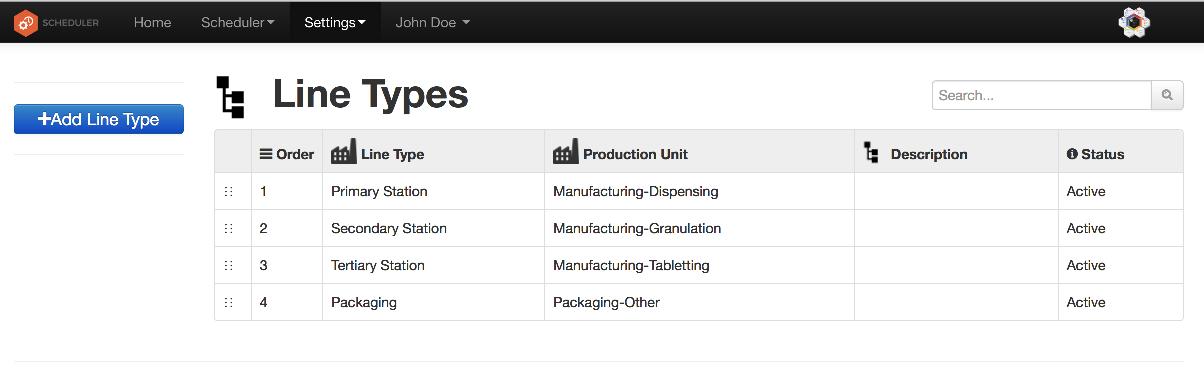
Line Types are important for giving a line a type in Lines of the Settings. On top of that while defining a job having multiple production stages the order of the production stage is also a critical factor. Because, the optimization algorithm can only assign a work order to a slot if the work order of the preceding production stage is already completed for that job. The order of production stages is linked to the order of the Line Types here. User can simply change the order by dragging and dropping rows one after another.