Release Notes 5.7.0

Digital Factory v5.7.0
Dear Digital Factory Admin,
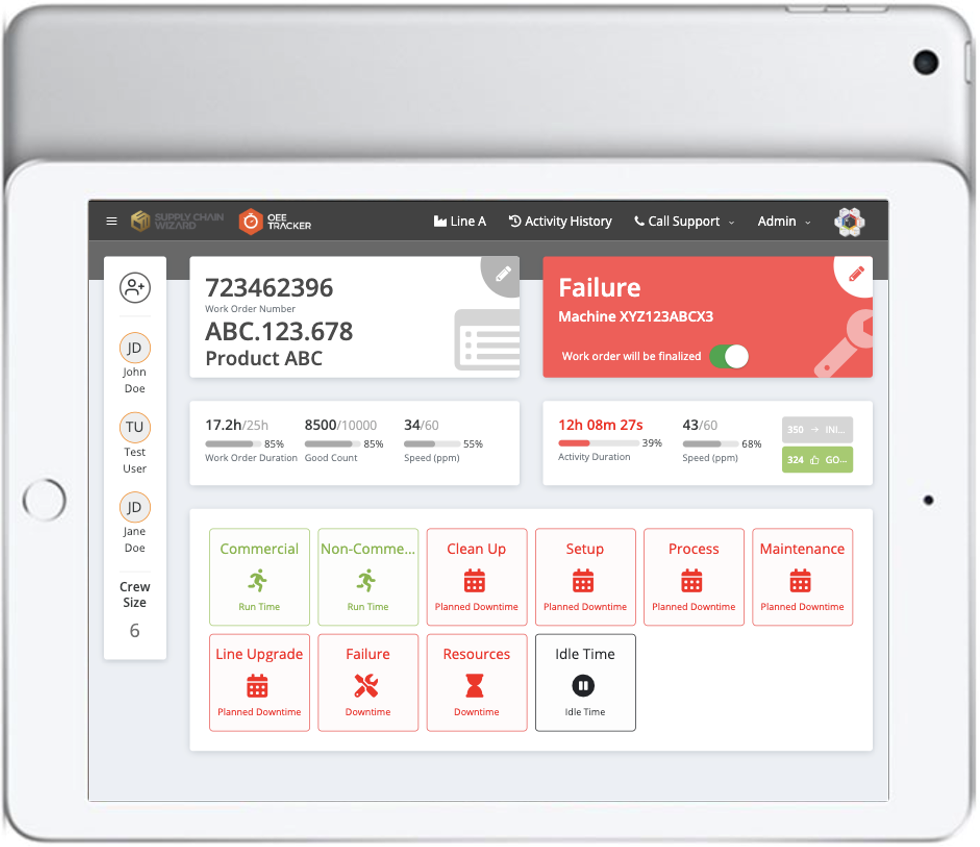
The latest version, 5.7.0 of Digital Factory will be released by May 20th, 2019. This release contains major operational changes for the operators using the system and entering valuable data every day. It will bring several visual and functional improvements for Digital Factory's OEE Tracker. With this new release, OEE Tracker will have a new look of the Home Screen which is faster, more user-friendly, and compatible with the iPads. In addition, the new Home Screen comes with several new features which mainly serve the following:
- Product OEE analysis and Top Failure Reasons report on work order creation process,
- Better and more informative work order finalization process,
- New visuals for:
- Activity Buttons,
- Average Production Speed,
- Product Counts,
- Work Order and Activity Durations.
New Home Design
- Compatible with various devices (iPads, AIO's etc.),
- User-friendly,
- Specifically designed for touch screens,
- Improved UX.
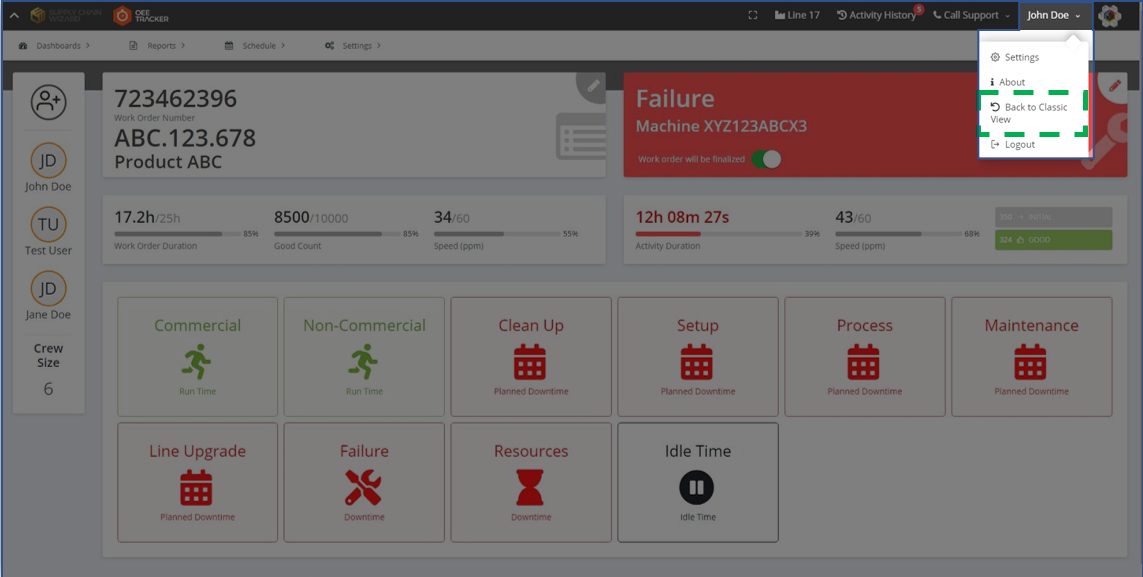
Back to Classic Home Screen
- The Classic Home Screen will also be available in the tool.
- Back to Classic View button is located under the username on the navigation bar.
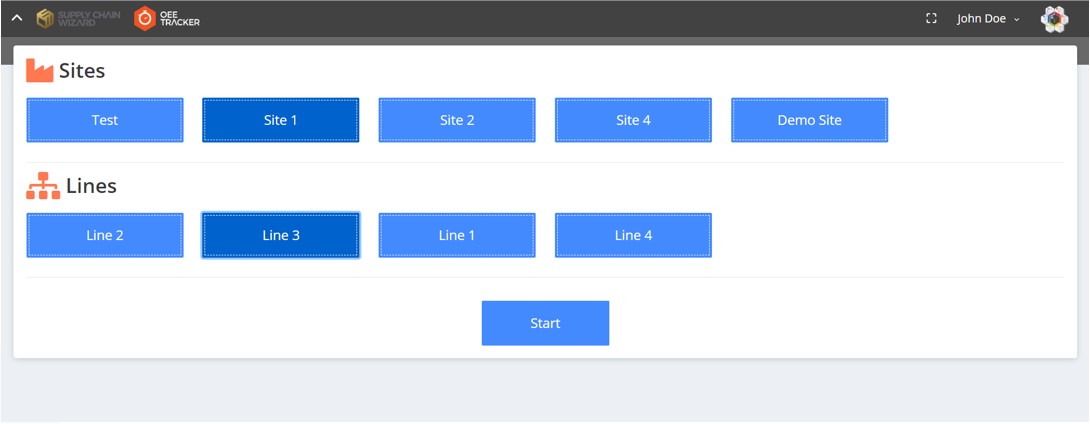
Site and Line Selection
- User-friendly new design with bigger buttons and full screen selection pages.
- Site and Line can be switched by pressing the line name on the navigation bar.
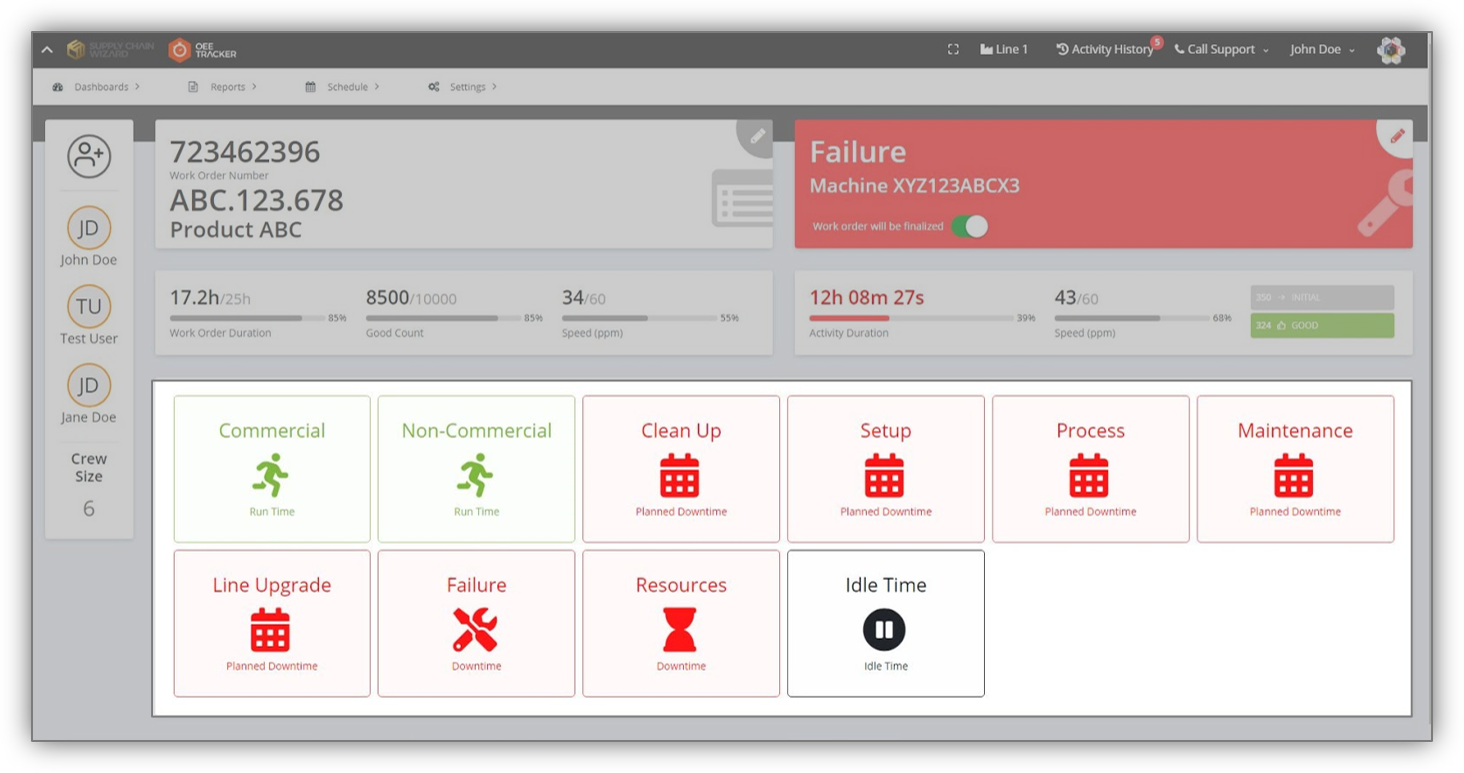
Activity Buttons
- Bigger, square-shaped buttons are much more touch-friendly,
- Fits to different size of screens properly,
- Ability to process two same activities back-to-back without pausing the system.
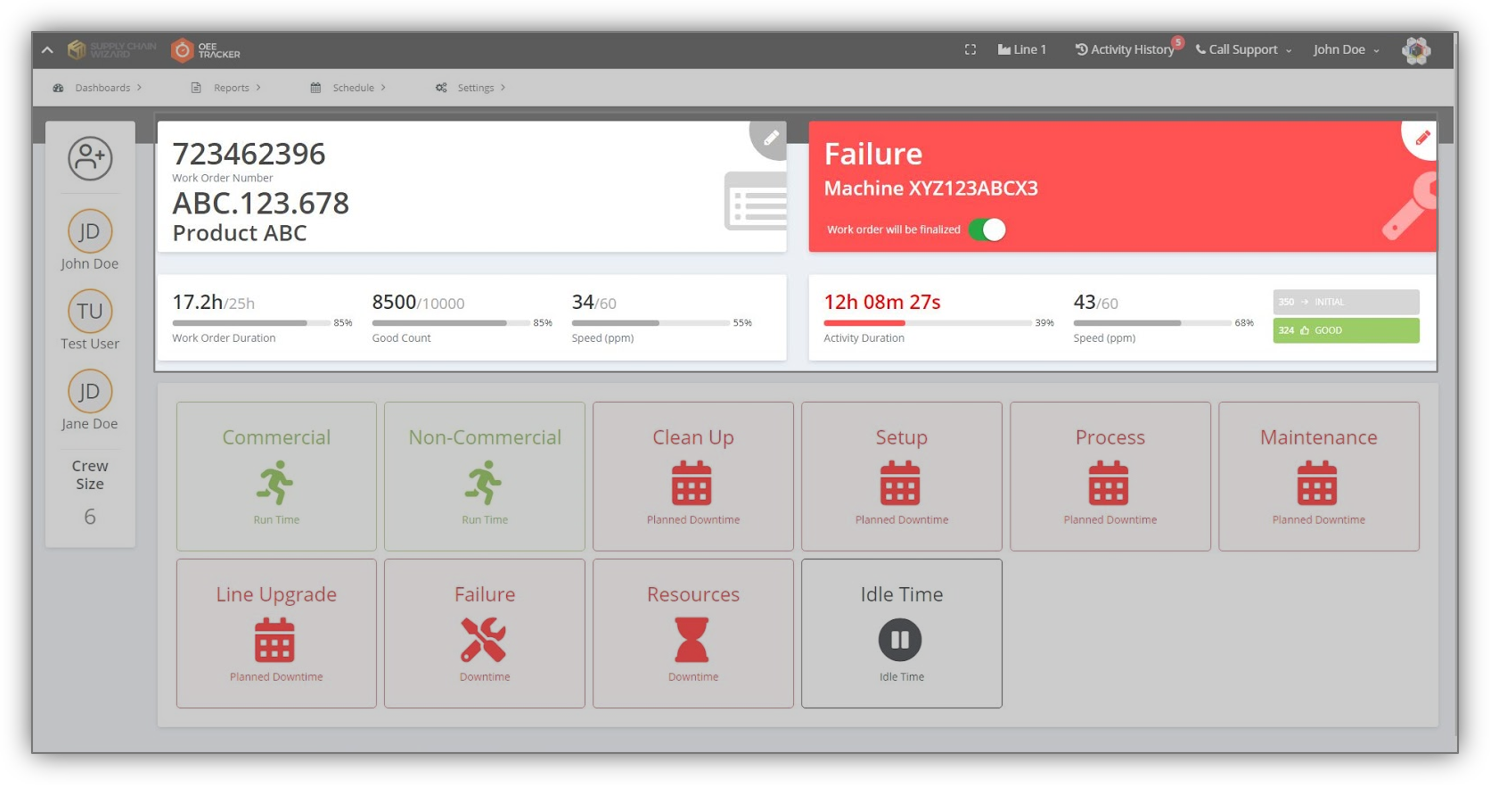
Activity and Work Order Cards
- Currently processed activity and work order metrics can be observed easily,
- Work order number, product name and product ID are displayed on the upper work order card. Users can always edit these fields by pressing on the pen icon.
- Work order duration, work order good count and average work order speed are indicated with progress bars in lower work order card.
- Currently processed activity and the task's name are in the upper activity card. Also, work order finalization switch is located on this card. Users can always edit these fields by pressing on the pen icon.
- Activity duration and average production speed during the activity progress bars are located on the lower activity card. In addition, initial and good counts can be observed from this card.
Check-in & Check-out
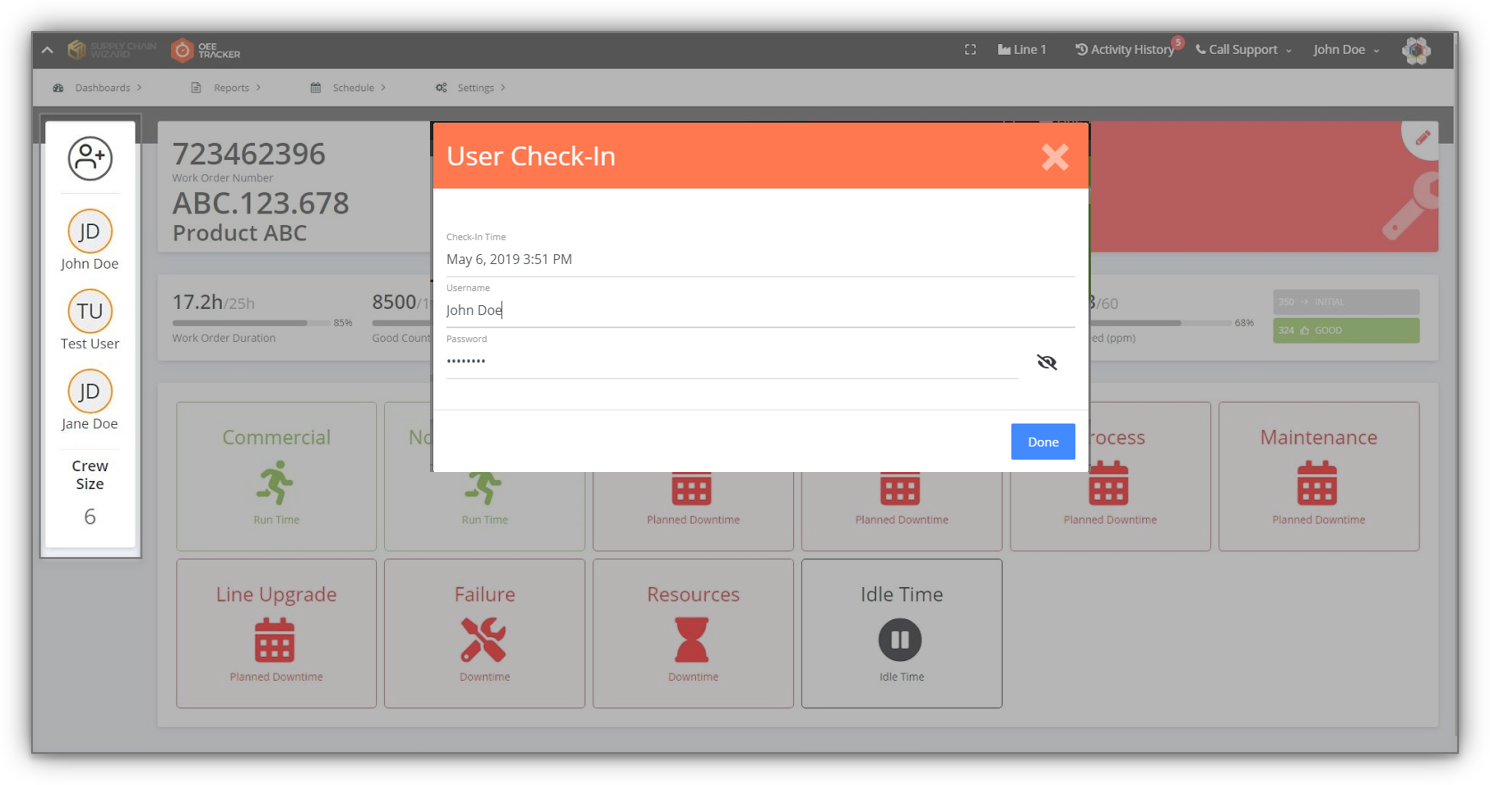
- Check-in and check-out mechanism is placed on the left side of the Home Screen.
- Check-in button is on top of the check-in&check-out card.
- Operators can check-out by pressing their usernames.
Call Support
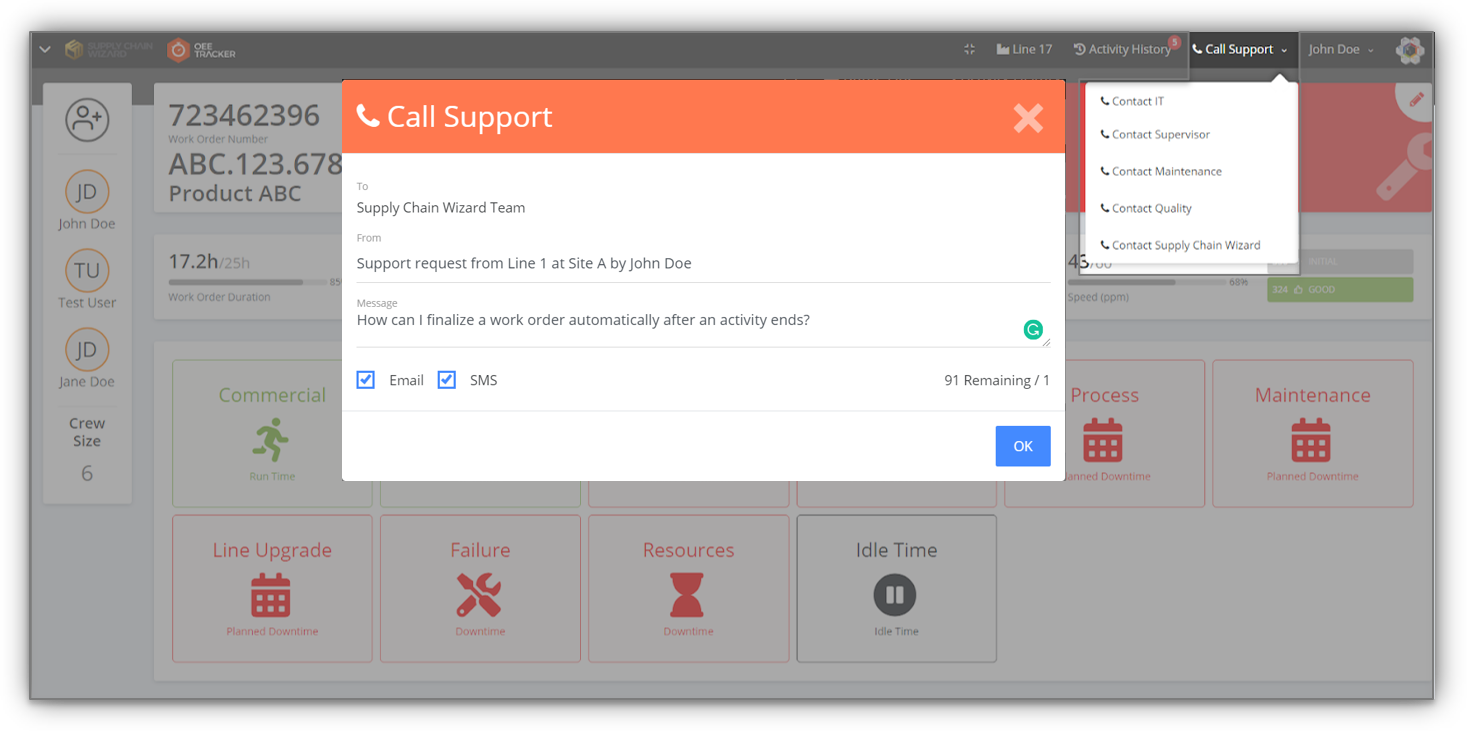
- Improved Call Support experience,
- Easily accessible from the navigation bar,
- E-mail and SMS options.
Work Order Create
- New work order creation process,
- Improved UX by full screen windows.
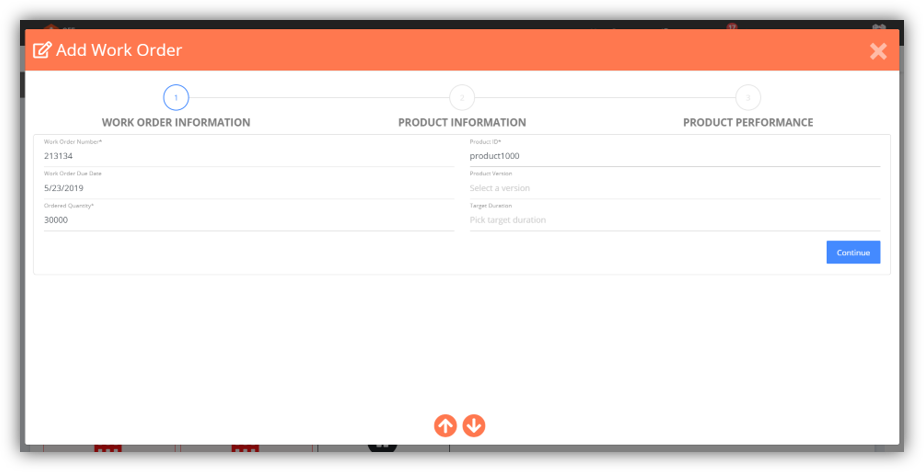
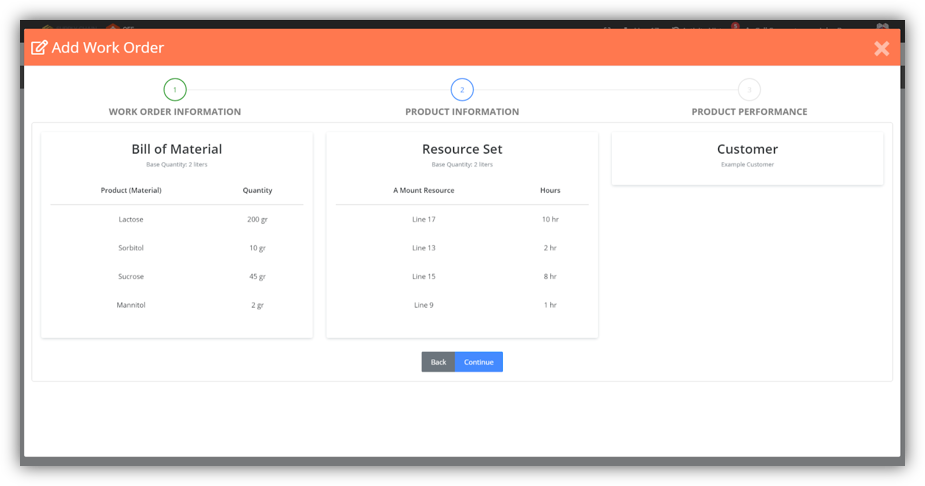
- Product information tab shows the Bill of Materials, Resource Sets and Customer information of the selected products.
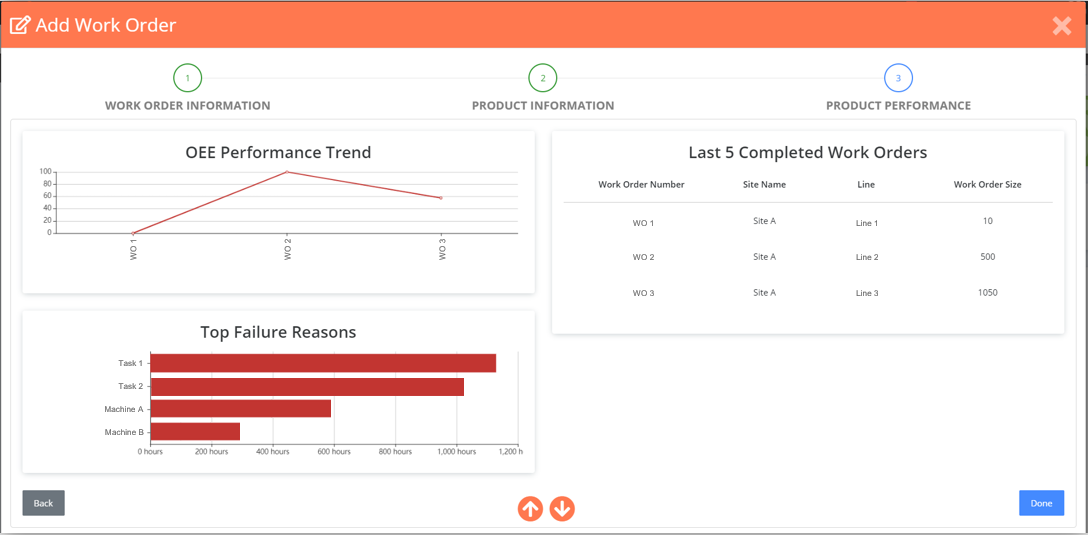
- Information regarding the OEE Performance Trend, Top Failure Reasons and Last 5 Completed Work Orders is shown in the Product Performance tab of the work order creation process. This is the last tab of the process and when Done button is pressed, the system saves the new work order with the selected features.
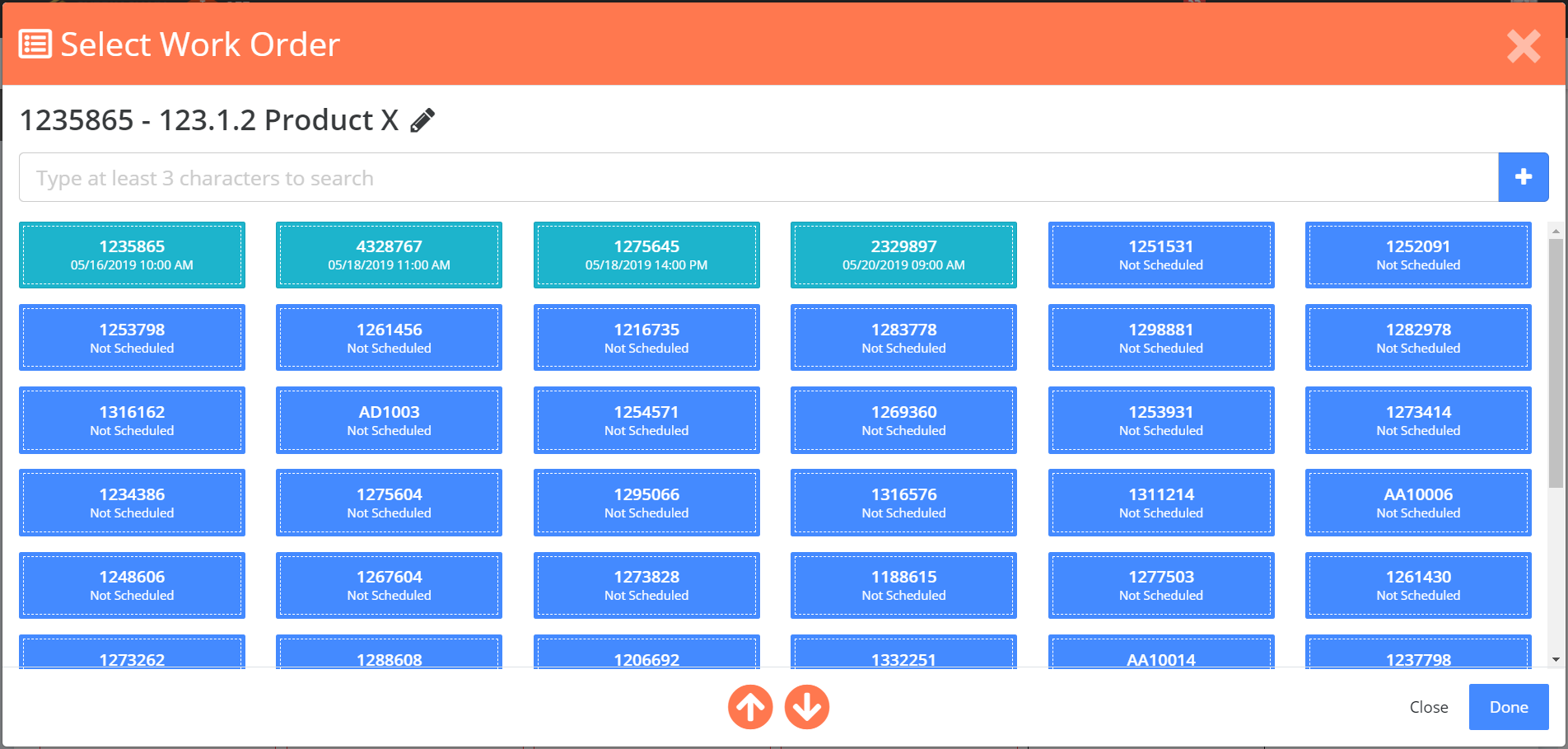
Select Work Order Page
- Integration to Digital Factory's Scheduler solution,
- Bigger and distant buttons makes the selection easier on touchscreens,
- Scheduled work orders are on top to direct operators to select the scheduled ones first.
- Ability to edit the work order by pressing the pen icon,
- Type to search work orders, press the plus button to add a new one.
Work Order Finalization
- Completely new finalization process,
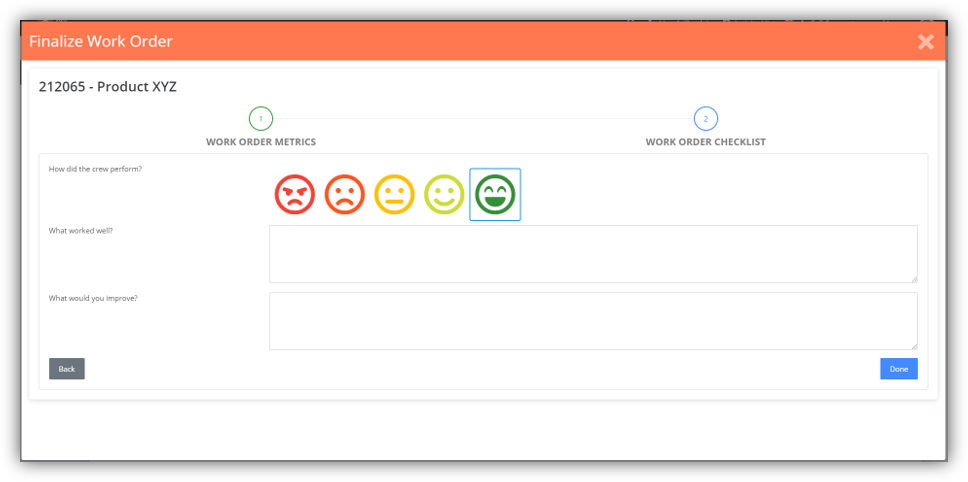
- Separate tabs for Work Order Metrics and Work Order Checklist.
- Yield, Scrap, Setup Time, Machine Hours, Labor Hours metrics are listed on the table.
- Actual, standard values, variances, and variance percentages are shown.
- OEE, Availability, Performance, and Quality levels progress bars give feedback on how well the work order is processed.
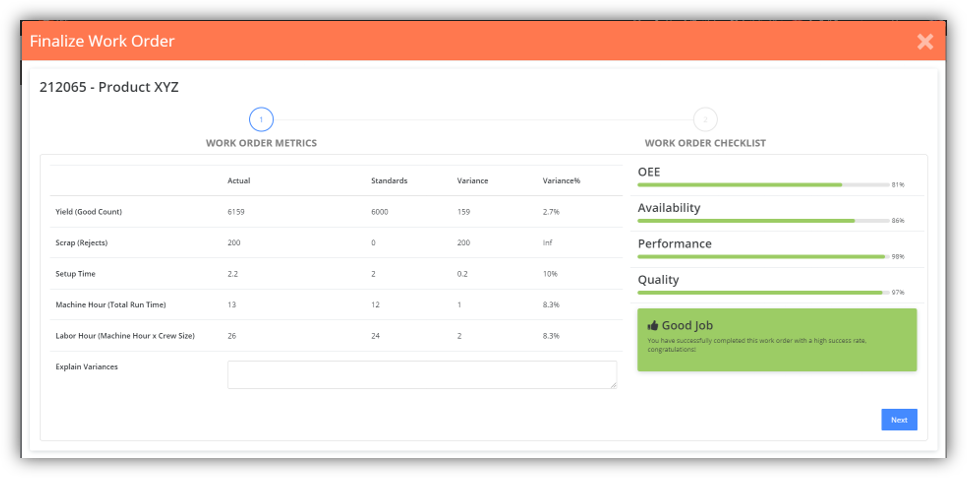
- Work Order Checklist takes feedback from the customer about the crew performance.
Site Tour
- Introduces the new Home Screen step-by-step
- Can start by pressing on the Tour button on the navigation bar.
