Release Notes 5.4.0

Digital Factory v5.4.0
Dear Digital Factory Admin,
The latest version, 5.4.0 of Digital Factory will be released by the 23rd of January, 2019. This release will bring several functional and visual improvements for Digital Factory's OEE Tracker.
Functional Improvements
Resource Groups
Under settings, there is a new page called resource groups, in which the users can create new groups for each site and assign existing resources to these resource groups. It is also possible to place a resource group inside another resource group. This allows the users to represent the resource usage needs to the tool more accurately. A resource group should contain resources that are interchangeable in terms of ability and production speed.
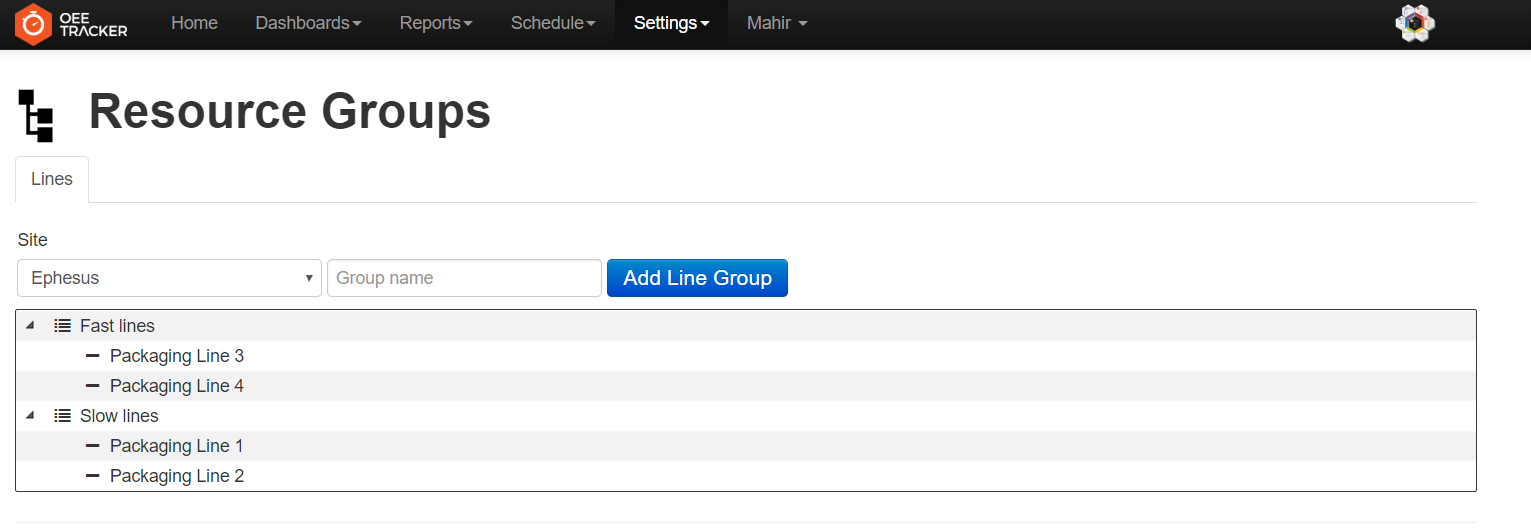 The image above is an example of the Resource Groups page where two resource groups are defined, each containing two interchangeable resources.
Bill of Materials
A new Bill of Materials (BoM) column is added to the Products (Materials) page. With this feature, users can add Bill of Materials information of the products (materials) in the system. Add and Edit buttons in this column opens a new window where the user can manage Bill of Materials of the product.
More than one BoM can be created for a product. This is because there might be cases that the same product (material) needs different set of materials under different conditions.
This new column is placed in the Products (Materials) page as follows.
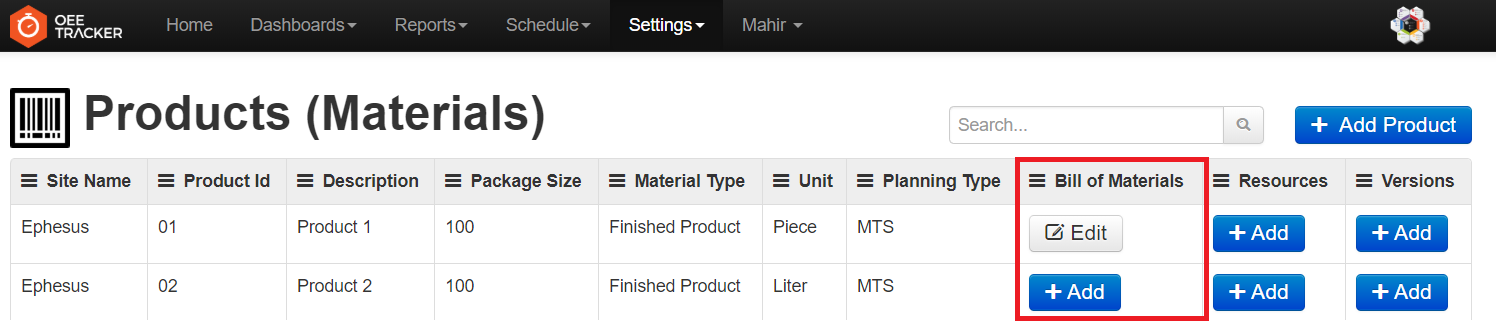
If a BoM is not yet created for a product (material), the button reads “Add”. If there is one or more BoMs created, it changes to “Edit”. When clicked on either button, the following window opens for the corresponding product.
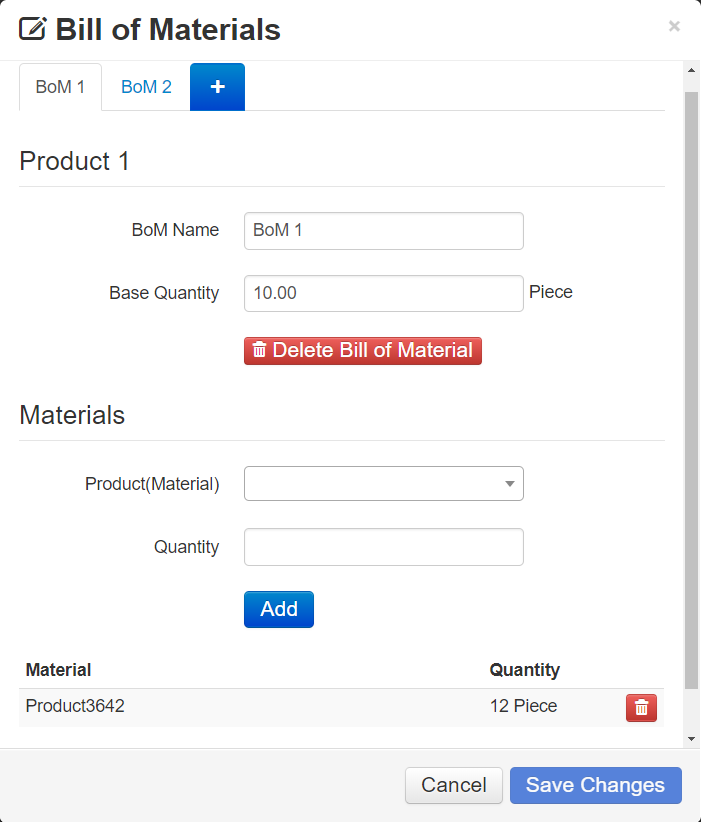
In this window, all BoMs created for the product is shown as different tabs. In a tab, details of the corresponding BoM are displayed. Base quantity is the amount of the product to be produced, and the materials to be used to produce that amount of product are specified below.
Resources
This column is added to the Products (Materials) page. Similar to BoM, it is possible to add one or multiple resource usage scenarios for a given product. When resources field of a product is selected, the following window opens.
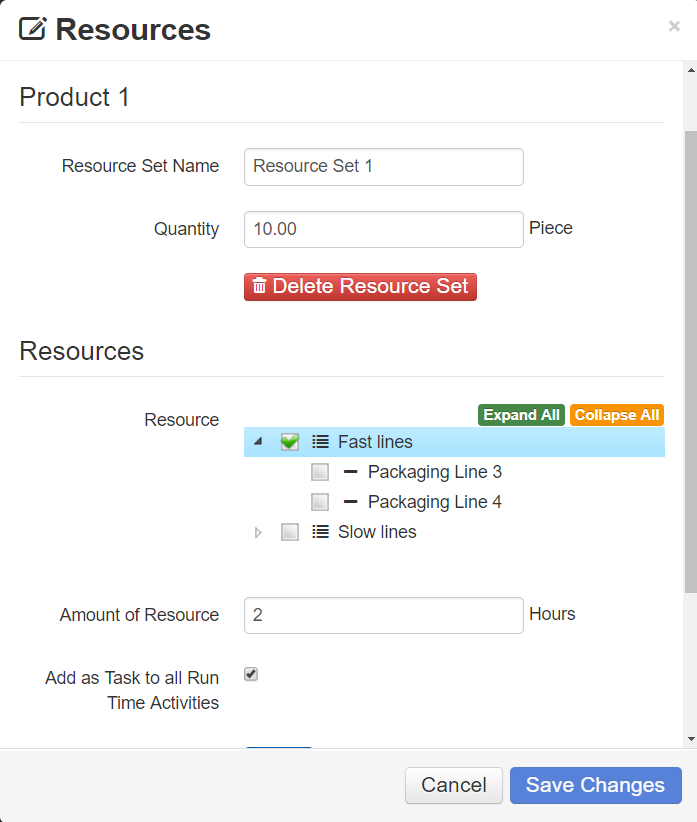
Under the first section, the resource set name and the base quantity of the product under consideration is requested. Below, the resource amount necessary for production is requested.
It is also possible to select a resource group instead of a single type of resource. Such a selection indicates that any resource declared under that resource group can be used to produce the corresponding product. For example, in the image above, Fast lines group is selected as a resource. This selection means that either Packaging Line 3 or Packaging Line 4 can be used as they are interchangeable.
Currently, the only resource type is lines. In the future, it will be possible to define other resource types (molds, tools, etc.) as well.
In the resources window, there is also a checkbox named “Add as Task to all Run Time Activities”. When checked, this feature automatically creates new tasks for all combinations of the corresponding product, selected resources and all types of runtime activities. Previously to this release, those tasks had to be created separately.
Versions
Versions is the last column added to Products (Materials) in this release. It indicates how many BoM – Resource Set combinations exist to produce a product.. When clicked, the following window opens.
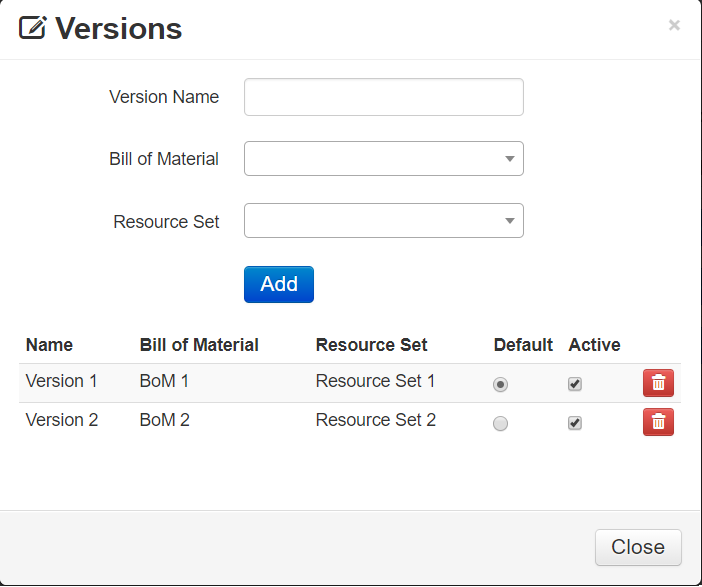
In this example, there are two versions meaning that this product can be produced either with materials under BoM 1 by using resources in Resource Set 1, or with materials under BoM 2 by using resources in Resource Set 2. It is possible to deactivate certain versions instead of deleting.
Material Type, Unit, Planning Type and Planning Group
Four additional columns are added to OEE Tracker for the better specification of the Products (Materials) and the data gathered from these fields open doors for the future improvements and new reports.
- Material Type column comes with the Raw Material, Semi-Finished Product, Finished Product options.
- Unit field is another product-specific field where user can choose the unit of the product among Gram, Kilogram, Liter, Meter, Centimeter and Piece options. The unit information of a product will come up automatically in Bill of Materials and Resources windows as the product is chosen.
- Planning Type column has two options: Make to Order and Make to Stock.
- Planning Group is a free-text field where user can put the product into a planning group by only giving this information.
Line Leader's add activity capability
Now, the line leader users can use add activity functionality of OEE Tracker. By using the Add Activity button under Activity History in the home page, they are able to create logs for the past activities.
Visual Improvements
Reports and Settings Tabs Reorganization
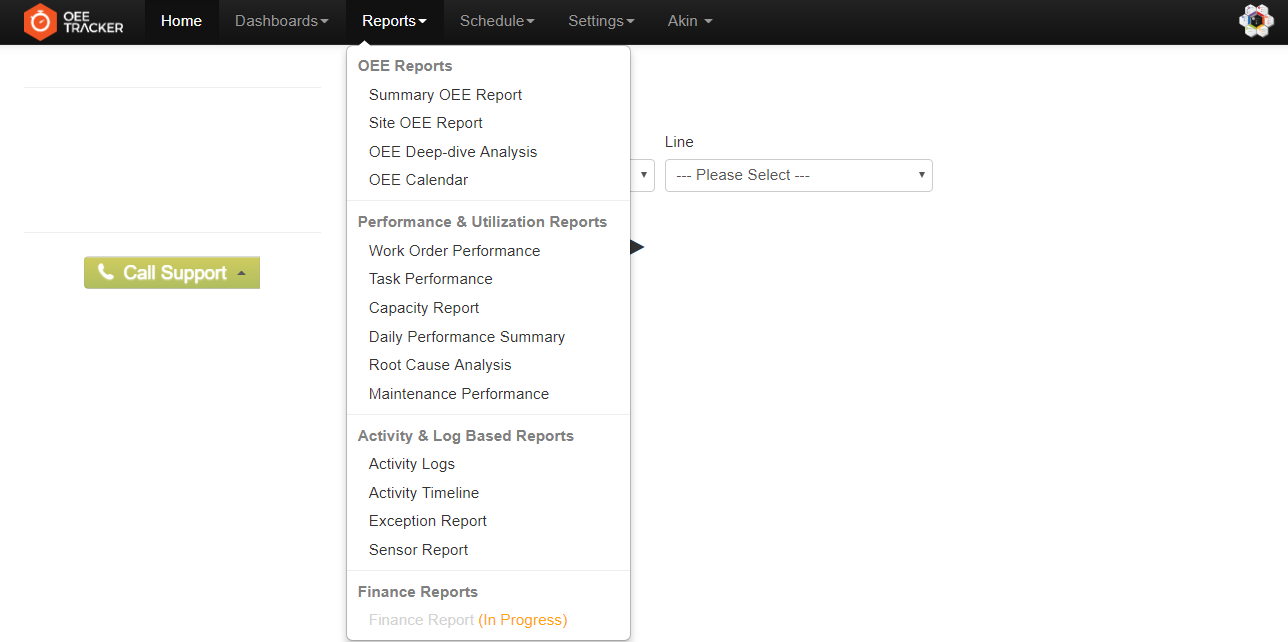
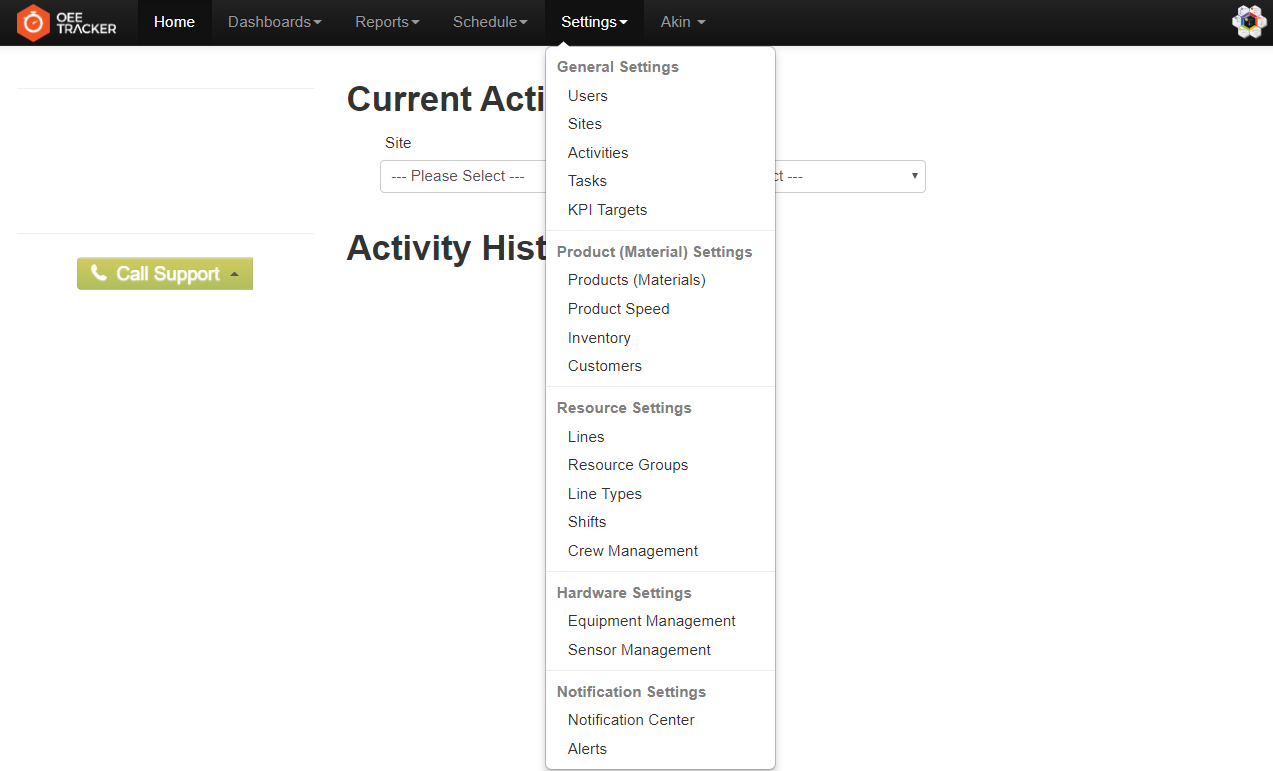
As the number of the reports and settings pages in OEE Tracker increases, the need to group these according to their functionality has arisen. With this release, the reports and settings tabs are grouped. The users can find and navigate the tabs much easier.
Also, a few of the settings tabs are renamed for better understanding:
- “Activity Types” is changed to “Activities”
- “Crew Size” is changed to “Crew Management”
- “Products” is changed to “Products (Materials)”
Below, you can see the new Reports and Settings Tabs menus:
Relocation of Add Buttons in Settings Pages
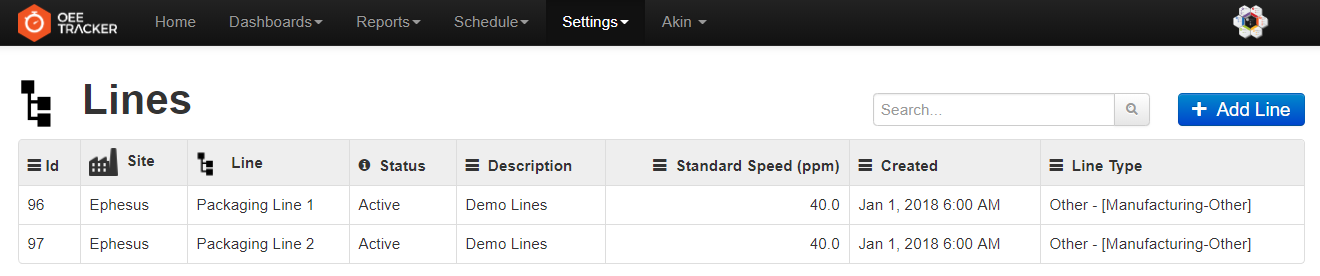
As the new features are released, the number of columns of the tables in Settings pages increases and the tables need more space for ease of use. Now, the Add buttons in these pages are relocated to the top right corner of the table allowing the whole page to be used by the table. Below, you can find the new design of Lines page.