Release Notes 5.2.0

Digital Factory v5.2.0
Dear Digital Factory Admin,
With the new release on the 19th of November 2018, the Digital Factory's OEE Tracker will have several new features. These new features mainly serve the following:
- Better the work order finalizing process,
- Reminding the user of filling mandatory fields on Home screen
These will improve the data integrity, hence the value you get from the OEE Tracker while improving the user experience.
All of the changes are compatible with what Operators are used to do today, and no additional training is required.
Finalizing Work Orders
This release provides OEE Tracker with novelties that enable operators and supervisors to end work orders clearly and safely as much as possible. Effective changes does not interfere with the usability of product by any means. Work order finalization could still be done as it was, so the new features relating to finalizing work orders will be alternative to current work order finalization process. Operators can choose pursuing accustomed practices as well as experiencing the convenience of newly introduced features. These new features will be covered below.
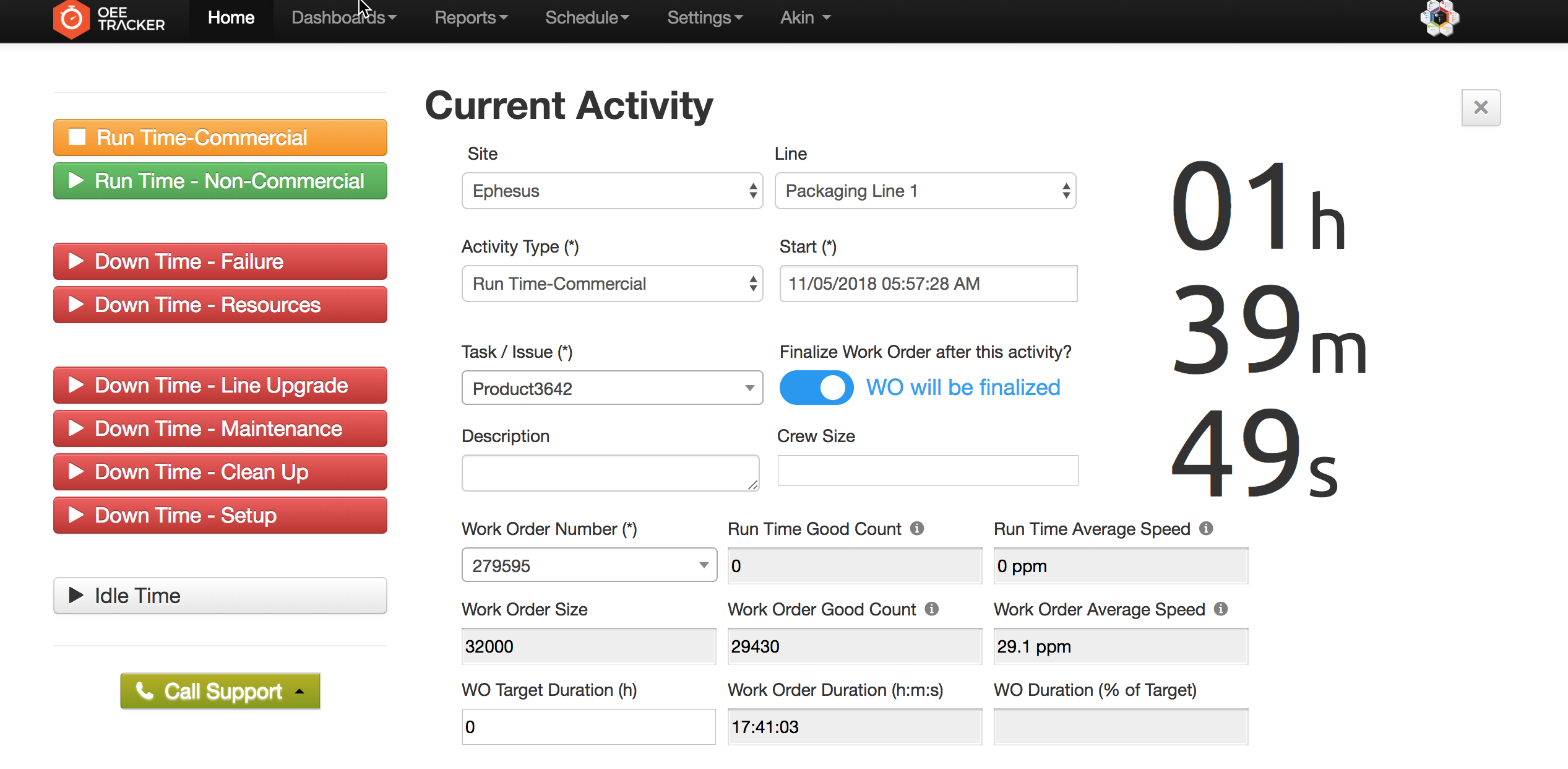
Work Order Finalizer Switch
- At Home page, between the Start and Description boxes, there will be a switch which enables the currently entered work order to finalize when the current activity finishes, if the switch is on.
- If the switch is on, no matter what task is selected (finalizer task or not) , relevant work order will be finalized.
- Only the default state of the switch is dependent on the task,that is if the task is a finalizer task the default state of the switch is on, else the switch is off.
- As the idle time activity is not associated with any work order, the finalizer switch option will not available for the idle time tasks.
- If an alert is triggered for the current activity and changes it, even the finalizer switch is on, the work order will still be In Progress.
Work Order Number Drop Down
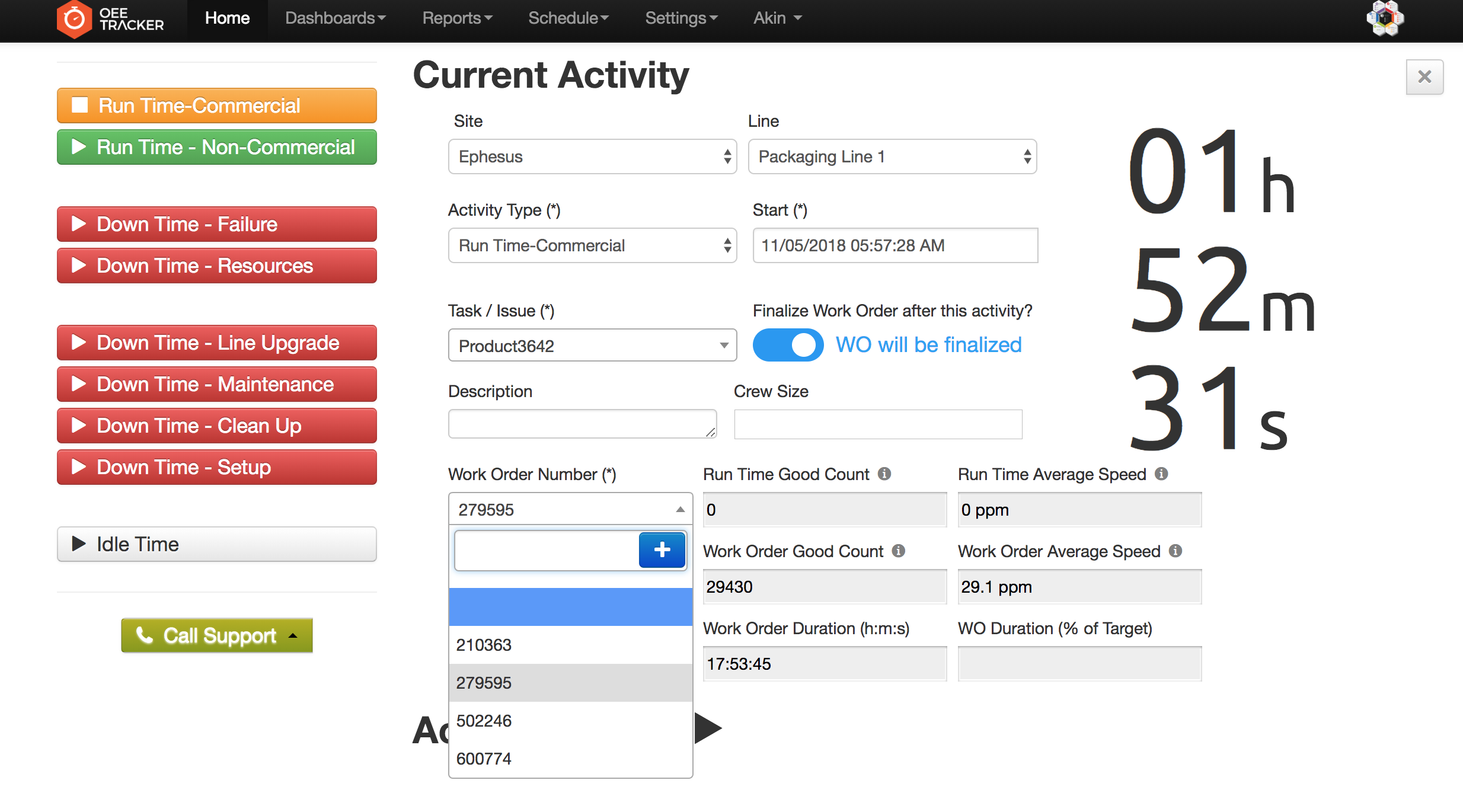
- At home screen, to improve UX and enhance data integrity, work order number field is now drop down style.
- Dropdown includes only 'in progress' and 'not started' work orders from Schedule.
- This dropdown will come with a search function so for operator typing work order number will be an option as well as selecting it from menu.
- If the work order number is not available in the drop down menu, adding a new work order is as easy as clicking plus button at the right beside the input field.
Work Orders Tab in Activity History
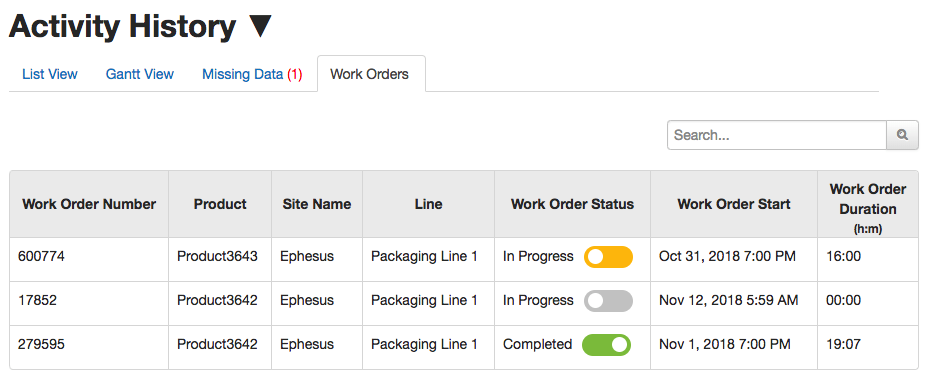
- Another way of finalizing is introduced with the new release. Now work orders can be viewed and their progress status can be modified retrospectively.
- This section will consist of a table inside the tab named "Work Orders" under activity history.
- With this new feature work orders that have been left as "In progress" could be ended seamlessly.
- This table is populated from the selected line's in progress and completed work orders.
- A switch column is there for changing status from 'in progress' to 'completed' or vice versa.
- Unless there is an ongoing activity of a work order, it could be ended by using the switch button.
- There is also a search box to search work orders for the convenience of the user.
Warning for Missing Data
Two minor features are introduced to increase awareness for missing data.
Mandatory Fields in Home Page
When the site and line are selected and an activity is started in the home page, after loading the page, all of the mandatory fields should be highlighted until the fields are entered by the user.
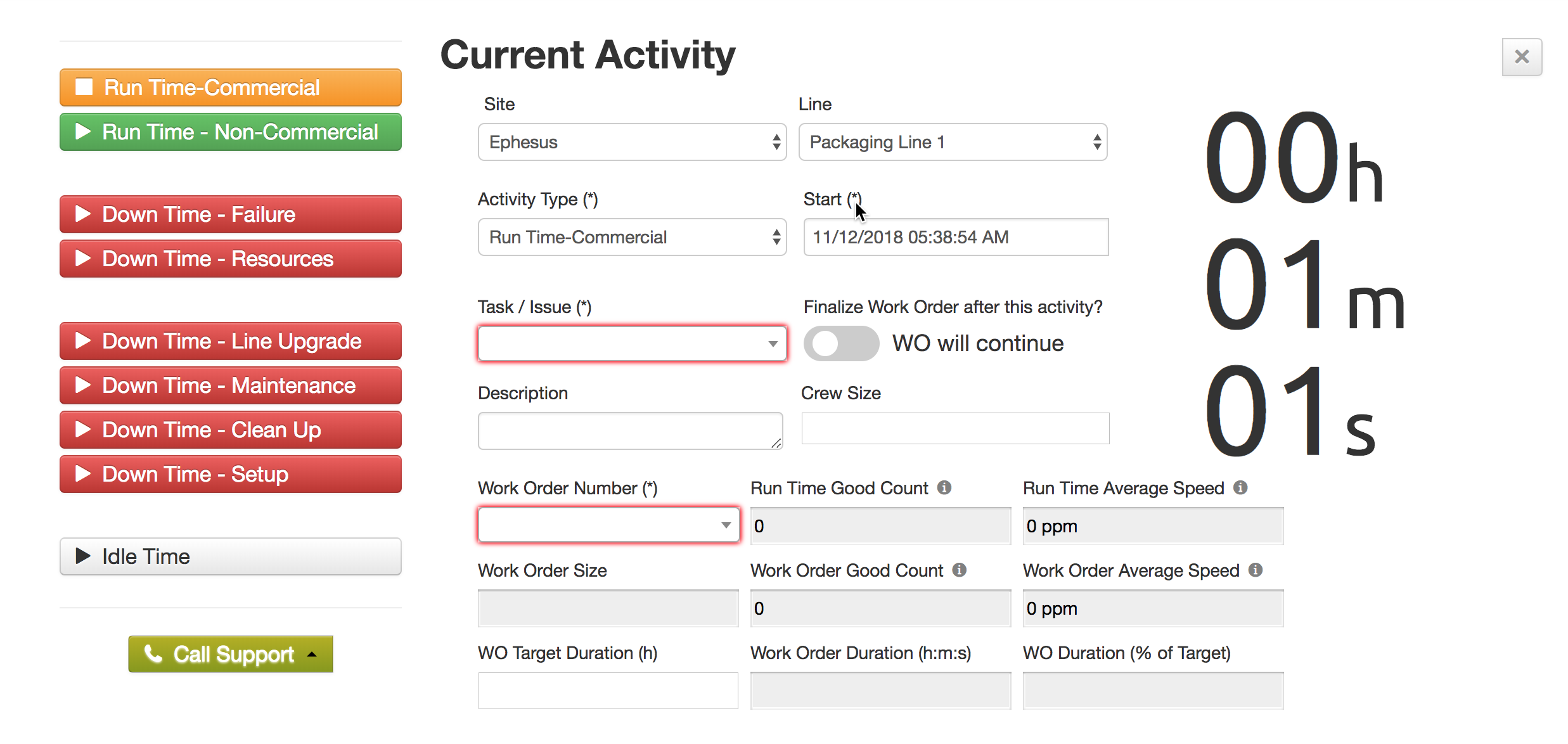
Indicator in Missing Data Edit
- In missing data tab under activity History, in the editing window of an item of the missing data table, the boxes of the missing parts will also be highlighted with red color.
Other UX Improvements
Add Activity Button Relocation
- At home page, the position of the add activity button is changed. It is now located at right top corner of the activity history section.
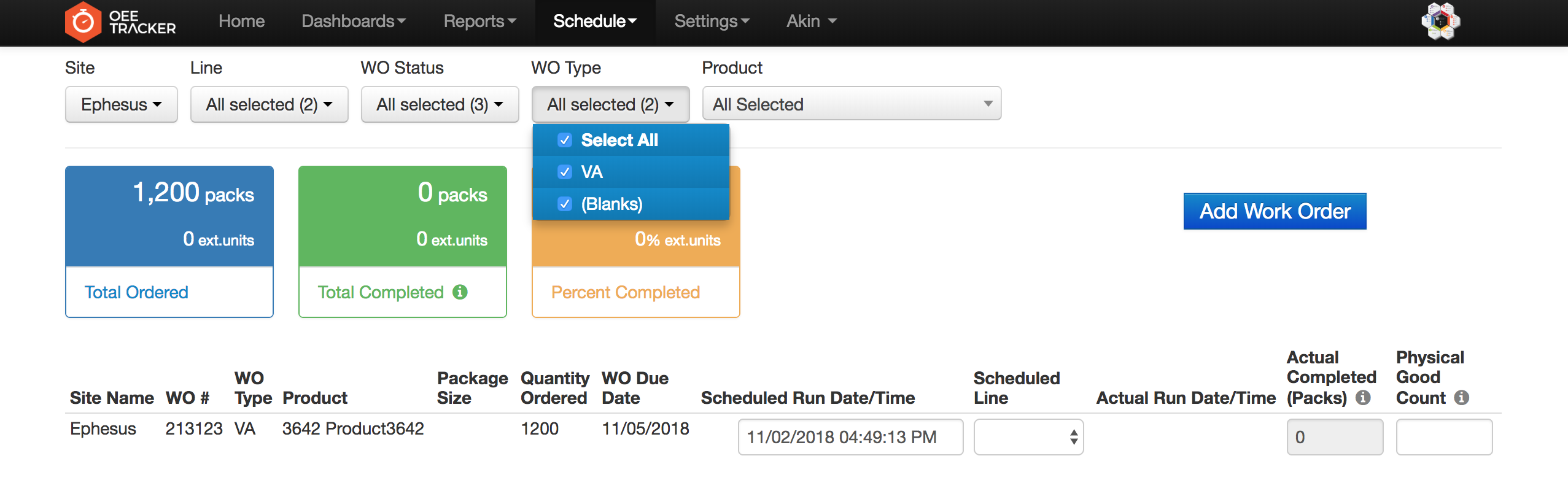
New Option for WO Type Filter
- At work order schedule page, a new option for WO Type filter "(Blanks)" is intoduced.
- The table shows the work orders which do not have WO Type information whenever the option is selected.